Docker
Contents
Whenever we try to replicate the local environment of one machine on the local environment on the other machine.
What we mean in simple words is , let’s say there is a machine A using a node v 16 and express v 20 but on a different that a new intern joins he has different versions installed , so in order to replicate these versions we might have to setup an environemnt and run certain commands so that this version operates properly.
Detached mode in Docker means running a container in the background of your terminal session. When you start a container in detached mode, it operates independently in the system memory without occupying or locking up your command-line interface.
Thus in order to operate at this we need docker to solves the classical problem of engg
There’s a standard problem in software engineering that it “works on my machine” and hence in order to solve this Problem docker ka janam hua.
Docker Containers and Docker Images#
Docker Containers: Containers make it easier for us to build different application on different versions of the same technology.
- A container is an isolated process that runs on your system. It includes everything that’s needed to run an application: code, runtime, system tools. libraries and settings.
- Isolation: Containers are isolated from each other and from the host system, which increases security and avoids conflicts
- Portability: Containers can run anywhere—on your laptop, in a data center, or in the cloud—ensuring consistency across environments.
- Lifecycle: You can create, start, stop, move, or delete containers. When a container is removed, any changes not stored in persistent storage are lost.
- Usage: Containers are ideal for running different parts of an application (e.g., frontend, backend, database) in separate, isolated environments.
Docker Image:
- An image is a read only template or an executable file with instructions for creating a docker container. It contains all the files, binaries, libraries and configs needed to run an application.
- Immutability: Images are immutable. Once created, they can’t be changed. To update, you create a new image.
- Layers: Images are built in layers. Each instruction in a Dockerfile creates a new layer. This makes images lightweight and efficient.
- Sharing: Images can be shared via registries like Docker Hub. You can pull images created by others or push your own.
- Building: You build images using a Dockerfile, which specifies the steps to assemble the image.
- Docker in general is a very lightweight technology.
Relationship#
- Image vs. Container: An image is the blueprint; a container is a running instance of that blueprint (image).
- Workflow: You build or pull an image, then run it as a container.
Docker Commands#
docker pull image_name: This command will help us pull an image from hub.docker.comdocker images: This command will help us get all the images in docker hubdocker run image_name:
- Image Lookup
Docker checks if the image (
image_name) exists locally.- If not, Docker pulls the image from the configured registry (like Docker Hub).
- Container Creation
Docker creates a new container from the image.
- The container gets its own isolated filesystem, networking, and process tree.
- Filesystem Setup
Docker sets up a writable container layer on top of the image’s read-only layers.
- Any changes made by the container (like creating files) are stored in this layer.
- Default Entrypoint and Command
Docker determines what to run inside the container:
- If the image has an
ENTRYPOINTorCMDdefined in its Dockerfile, Docker uses those as the default command. - You can override these by specifying a command after the image name.
- If the image has an
- Environment and User Setup Docker sets up environment variables and the default user as defined in the image, unless overridden by flags.
- Networking Docker connects the container to the default bridge network (unless otherwise specified).
- Container Start Docker starts the container process as defined by the entrypoint/command.
- Foreground Execution
By default, the container runs in the foreground, and you see its output in your terminal.
- If you want to run it in the background, you can add
-d(detach).
- If you want to run it in the background, you can add
- Container Exit
When the process inside the container finishes, the container stops.
- The exit code of the process is returned by
docker run.
- The exit code of the process is returned by
Summary:
docker run image_name creates a new container from the specified image, sets up its environment, and runs the default command defined by the image. The process runs in isolation, and when it exits, the container stops.
docker ps -a: Shows all containers (both running and stopped/exited).docker ps: Shows only running containers.
What is the basic difference between Docker and VM?#
Attaching Notes from the AWS articles#
- First and Foremost Docker and VMs are two technologies that are used in the Application Deployment during any SDLC.
- Docker is an OSS tool that is used to package software into standardized units called containers
- Using Docker you can deploy and scale applications on any machine and ensure your code runs consistently
- In contrast, a virtual machine is a digital copy of a physical machine. You can have multiple virtual machines with their own individual operating systems running on the same host operating system. Developers configure the virtual machine to create the application’s environment. It’s also possible to run Docker containers on virtual machines
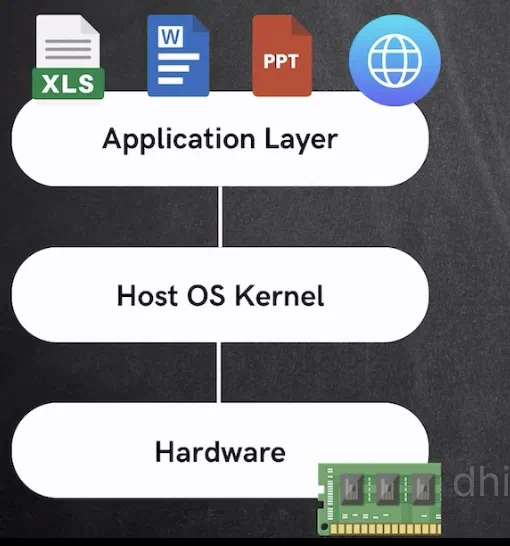
- If we’re working on any machine whether it’s Windows, MacOs, Linux or any other machine , then system mai operating system ka andar bhot saare layers hote hai. In any system docker kya kaam krta hai voh host OS kernel ko hee use krta hai
- Because VMs virtualise both the layers hence they usually have a larger overhead. Docker virtualises only Application Layer
- There’s a host kernel of the OS which is connected to the Application layer and application layer is the layer jiske upar humare system ki saari applications are basically running
- That means docker containers ka andar joh host ki application usko hum access yah use nahi kr skte , toh docker joh container hota hai uske andar ak different set of applications hota hai
- Vms are compatible with any kind of system , however that is mac system windows or linux based system
- However docker was build for linux systems
- Most of the docker images are linux based , docker desktop adds a lightweight hypervisor layer add krta hai which internally uses a lightweight linux distribution
Docker Image and Docker Container#
- Docker Image is a read only executable file template to create docker container.
- Containers are like an instance of the docker image
- Background mai run krne ka liye you can use
docker run -d container_name
When you run the hello-world image, the command unfolds in the following steps:
- The docker client contacted the docker daemon
- The docker daemon pulled the “hello-world” image from the docker hub
- The Docker daemon created a new container from that image which runs the executable that produces the output you are currently reading.
- The Docker daemon streamed that output to the Docker client, which sent it to your terminal
Docker daemon is actually a core part of docker desktop , then docker daemon pulled the “hello-world” image.
Container can have multiple states running and exited that means the container can be in either of the two states.
Now the -it mode (interactive) in docker , can refer to a container uske andar ak ubuntu machine run kr rhi hogi.
root@25d2f2939953:/#
Root directory followed by the special id of the container.
docker run -it image_name
docker stop CONT_NAME_OR_CONT_ID
docker start CONT_NAME_OR_CONT_ID
docker ps        # gives all the running containers
- It gives a blueprint on how can we build our containers. With the help of single blueprint (image) we can build multiple containers. Docker Image is a static snapshot of what the (application + dependencies) is going to look like in local dev env.
- Similar to concept of classes and objects in OOPS. There is a similar relation in Docker Images and Docker Containers. Docker Image is an Executable file. It contains all commands of building a specific container.
- Image is small and the system resources is being occupied by containers and not images taaki voh application ko setup krkr run kr ske
Docker container have it’s owns file system and ports attached with them. Container can have their own files systems and they cannot access humare actual system ki files and all.
Docker Image is a set of these layers like Base Layer (linux) → Layer 1 → Layer 2 → Container
Container layer is actually the only r/w layer.
Port binding#
Every docker container has theoritically a port binded to it , which means that when you bind a specific port to a Docker Container, using the -p or --publish flag with docker run, you are mapping a port on your host machine to a port inside the container.
This allows you to access the application running inside the container from outside the container, such as from your browser or another service.
Host machine par 8080 port par request bhjenge toh it’ll automatically get redirected to that port.
docker logs CONT_ID
docker exec -it CONT_ID /bin/bash
# or
docker exec -it CONT_ID /bin/sh
Run a mongoDb based container or pg container that will work as a sql container.
Docker Network#
Docker networking is a built-in architecture that enables isolated Docker containers to communicate with each other, the host machine, and external networks like the internet.
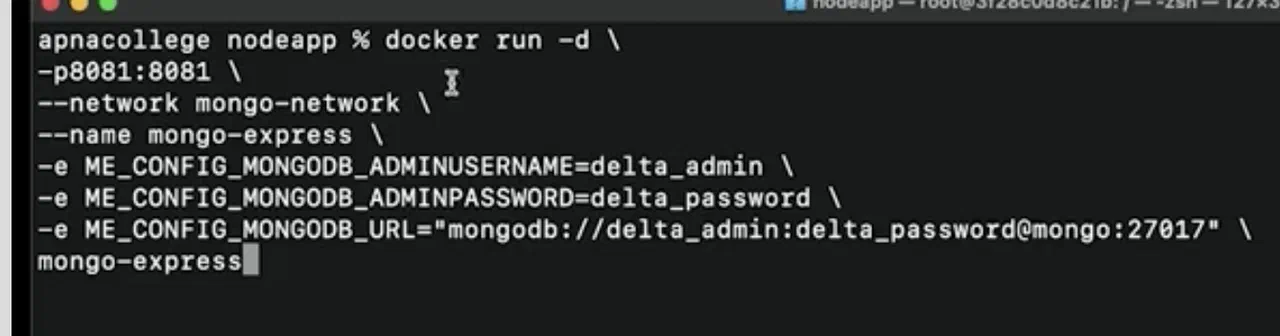
Components of the command while setting up a specific image in the docker:
docker run -d \
  -p 8081:8081 \
  --network mongo-network \
  --name mongo-express \
  -e ME_CONFIG_MONGODB_ADMINUSERNAME=delta_admin \
  -e ME_CONFIG_MONGODB_ADMINPASSWORD=delta_password \
  -e ME_CONFIG_MONGODB_URL="mongodb://delta_admin:delta_password@mongo:27017" \
  mongo-express
The most interesting part is just with the help of setting up our mongo containers we were directly able to access our node application and make changes into the db that we have in the node application.
Docker Compose#
Docker Compose is a tool for defining and running multi-container applications. That is if there’s an application that uses multiple containers then we can use the docker compose tool to define those applications.
Because in that case instead of rechanging and then running the commands over and over again we can simply use a compose file.
The version field is actually an obsolete property which is not used by docker compose ka newer versions.
services = containers
docker-compose -f filename.yaml up -d
docker-compose -f filename.yaml down
Sharing your app as an image#
If we have to share our application with someone we can simply create a docker image and then as soon as we create a docker image we can share the image with anyone and then they will run a container of our image, on their local to replicate the env.
In CI/CD there’s a tool named Jenkins who does this kind of work, which via CI/CD we can push over GitHub and there is this kind of tool out there which does all the work.
Dockerfile#
FROM <image> defines a base for your image.
# syntax=docker/dockerfile:1
FROM node:20-alpine

# Set up project workspace
WORKDIR /app

# envs
ENV EXPRESS_APP=server.js
ENV EXPRESS_PORT=8080

# Install dependencies (done before copying code to optimize caching)
COPY package.json package-lock.json ./
RUN npm ci

# Copy the rest of the source application
COPY . .

# Expose network port and set runtime instruction
EXPOSE 3000
CMD ["npm", "start"]
COPY hostfiles containerPath